Ritlum for Chrome: A Habit Tracker That Logs Itself
October 20, 2026
Ritlum started with a LeetCode streak.
I was grinding practice problems and noticed that the thing keeping me going wasn’t the problems. It was the little green squares. Once I had a few days in a row, breaking the streak felt worse than doing one more problem. I wanted that same pull for the rest of my habits: reading, the gym, drinking enough water. That idea became Ritlum.
The odd part is that LeetCode itself became one of the habits I tracked in Ritlum, and logging it was the most annoying of all. I’d get an Accepted, feel good, close the tab, and forget to check the habit off. The streak on LeetCode stayed intact while the one in Ritlum broke.
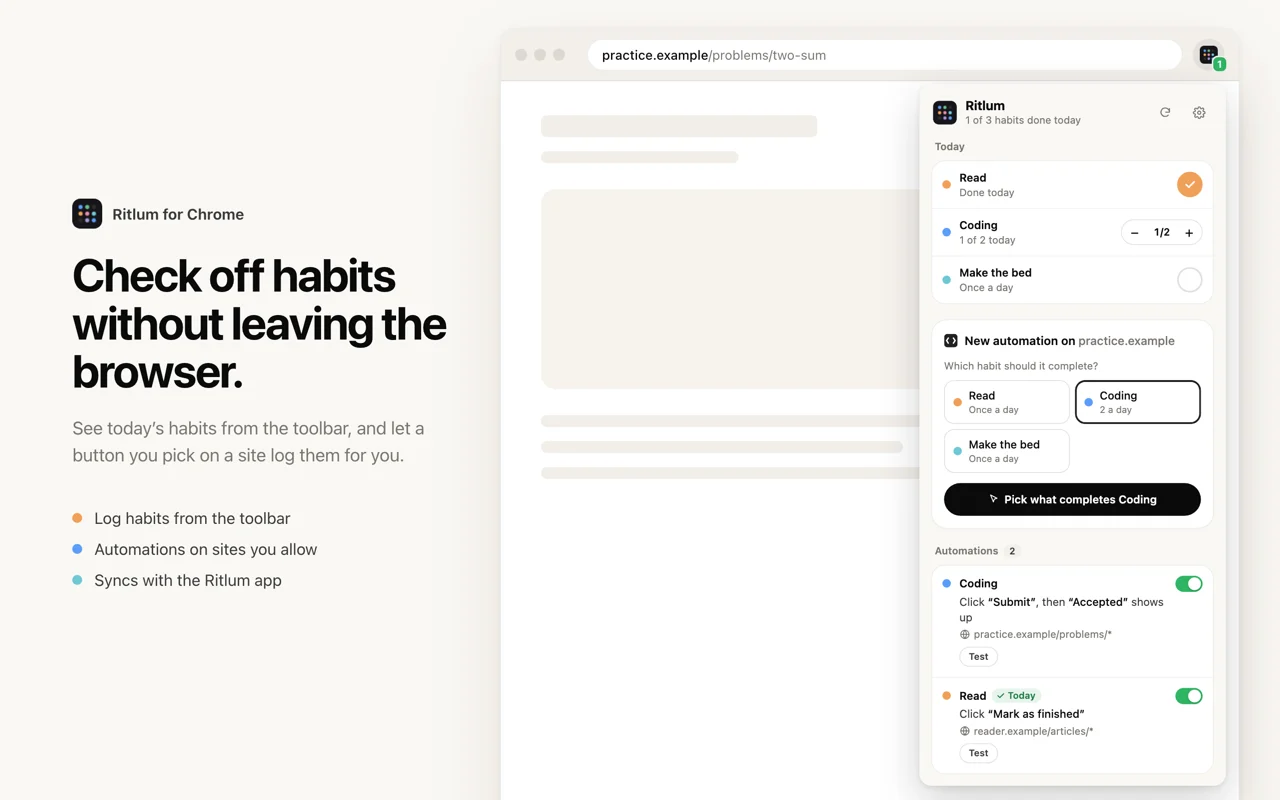
So the newest piece of Ritlum is a Chrome extension that logs a habit when you do it in the browser. Click Submit, see Accepted, and the habit is checked off. In a way it’s a full circle: the streak that inspired the app now keeps itself.
The problem with habits that happen in a browser
A lot of habits now live in a browser tab. Practice problems, language lessons, a reading list, a workout log, a course module. You do the habit on one site and then have to go log it somewhere else.
That second step is small, but it comes right after you finish, which is exactly when you stop paying attention. A habit tracker only works if logging costs almost nothing. For habits on your phone, Ritlum already has the widget and NFC tags. The browser was the gap.
How it works
The extension watches for one moment on a site you choose, then logs the habit for you. Here’s the LeetCode version:
1. Two Sum
Easydef twoSum(nums, target):
seen = {}
for i, n in enumerate(nums):
if target - n in seen:
return [seen[target - n], i]
seen[n] = iRitlum app · Today
Desk tracker
- You click Submit
- The site says Accepted
- Ritlum logs the habit
- Your phone and tracker update
Setting one up takes about a minute:
- Pick a habit. Open the extension on the site and choose which Ritlum habit this is for.
- Click the button that marks the moment. Press “Pick what completes it”, then click the button on the page, such as Submit. The page won’t react while you pick.
- Optionally, wait for a confirmation. Tell it a message like “Accepted” has to appear after the click. Failed submissions then don’t count. This is the part that makes it work for LeetCode.
- Choose where it applies and save. Review the URL pattern so it covers every problem page, not just the one you’re on.
From then on, the next time you click Submit and get Accepted, a small card appears in the corner: Logged “Daily LeetCode”. You can add a note about how it went, like which problem it was or how long it took. The habit shows as done in the Ritlum app a moment later, and if you have a Ritlum desk tracker, today’s light comes on in that habit’s row.
Each automation has a Test button that checks it without logging anything.
Not just LeetCode
Anything with a clear “done” moment works:
- Language lessons: the button at the end of a lesson, with “Lesson complete” as the confirmation.
- Reading: a “Mark as read” or “Finish” button in your reader or reading list.
- Courses: “Complete and continue” on a lesson page.
- Workouts: the “Save workout” button in a web-based training log.
- Writing: “Publish” on your blog, if the habit is shipping one post a week.
Count habits work too. If your goal is three problems a day, each Accepted adds one and the card shows “2 of 3 today”.
For habits with no clear trigger, the extension’s popup has a Today list, like the app’s Today screen, so you can check things off without picking up your phone.
Getting started
- Install Ritlum from the Chrome Web Store.
- Open the extension. It shows a QR code.
- In the Ritlum app on your iPhone, go to Settings → Browser extension and scan it, or type the short code.
- Go to a site where one of your habits happens and set up your first automation.
If it misbehaves on a site, let me know which one.
FAQ
Does the Ritlum extension read my browsing history?
No. It only runs on sites where you create an automation, and Chrome asks for your permission for each one. On those pages it only watches for the button and message you picked. Nothing else from the page, and none of your history, leaves your browser.
Can it log LeetCode problems automatically?
Yes. Pick the Submit button on a LeetCode problem page as the trigger and require the word Accepted to appear afterwards. Accepted solutions log your habit, and wrong answers don't.
What if I click Submit twice in one day?
A habit you do once a day only logs once a day. A count habit, like solving three problems, goes up by one each time.
Does it work offline?
If you're offline when an automation fires, the extension queues it and sends it the next time it can reach Ritlum. Each log has its own ID, so a retry never counts twice.
Which browsers does it support?
Chrome. Browsers that install extensions from the Chrome Web Store, such as Edge and Brave, usually work too.
Do I need the Ritlum app?
Yes. The extension links to your Ritlum account. You link it by scanning a QR code with the Ritlum app for iPhone, and you can unlink it from either side at any time.